


Tech Support for VeCOAX RACK-2 RACK-4 multi channel hdmi rf modulators qam atsc isdbt dvbt dvbc for hdmi over coaxial tv channels distribution extenders
VeCOAX RACK 2 / 4
Tech Support Page
Is this the product you have?
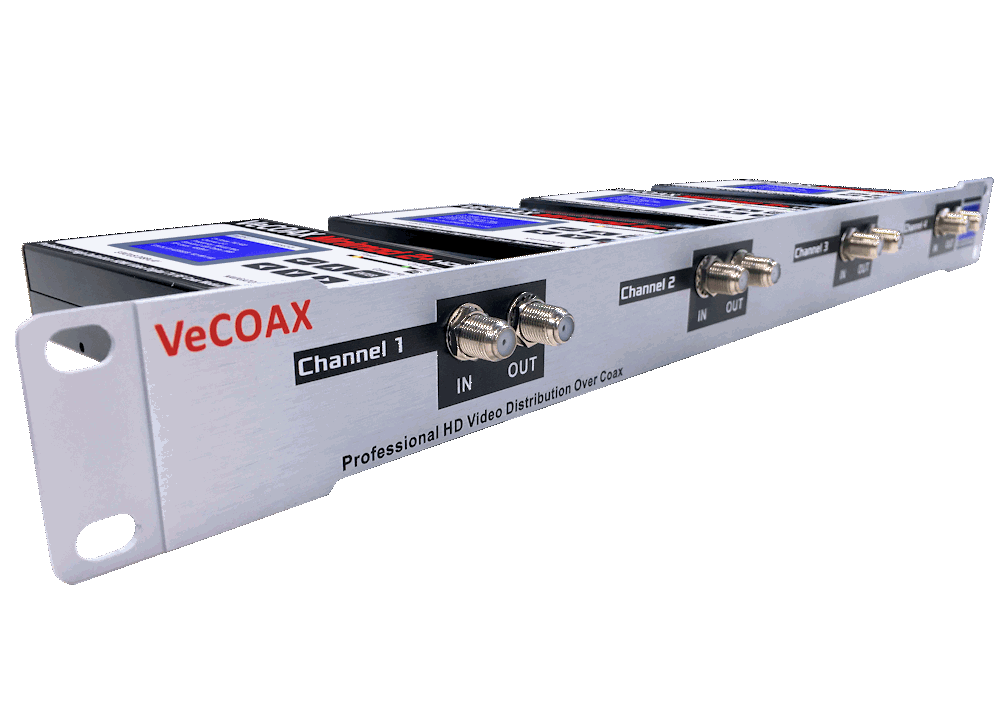
VeCOAX Minimod 2+ FIRMWARE Upgrade Download

Upgrade channel by channel to the newest version
VeCOAX RACK 2 / 4 Instruction Manual Download

Prepare the Rack Panel
Configure the MINIMOD 2+ channels
(new 2023 model)
Configure the MINIMOD 2 channels
(previous generation)
Multiple Units Quick Installation
IF you are merging the minimods 2+
with other coaxial TV channels,
FIRST find out FREE CHANNELs
not used on your TV channel list
so channels will not jam each other.
Look on your TV channel list
for UNUSED channel numbers.
(A) Prepare your Minimods 2+ ON Different Channels
To merge multiple Minimod 2+ over the same coaxial each must be set to a different channel so they do not jam each other
Click here for how to set the Minimod 2+ channels
(B) Install Your Minimods 2+ one by one
1) THIS IS MOST IMPORTANT FOR A PERFECT SETUP
At first, connect each Minimod 2+ DIRECTLY on one TV with a short piece of coaxial cable
2) No need to connect the HDMI input
3) Check on the Minimod Display it shows the CORRECT Channel Name & Numbers you want.
Click here for how to set the Minimod 2+ channel
4) Rescan Your DIGITAL TV Channel List on your TV Menu to find the Minimod 2+ Channel on your TV.
You will see a Test Pattern as this here below
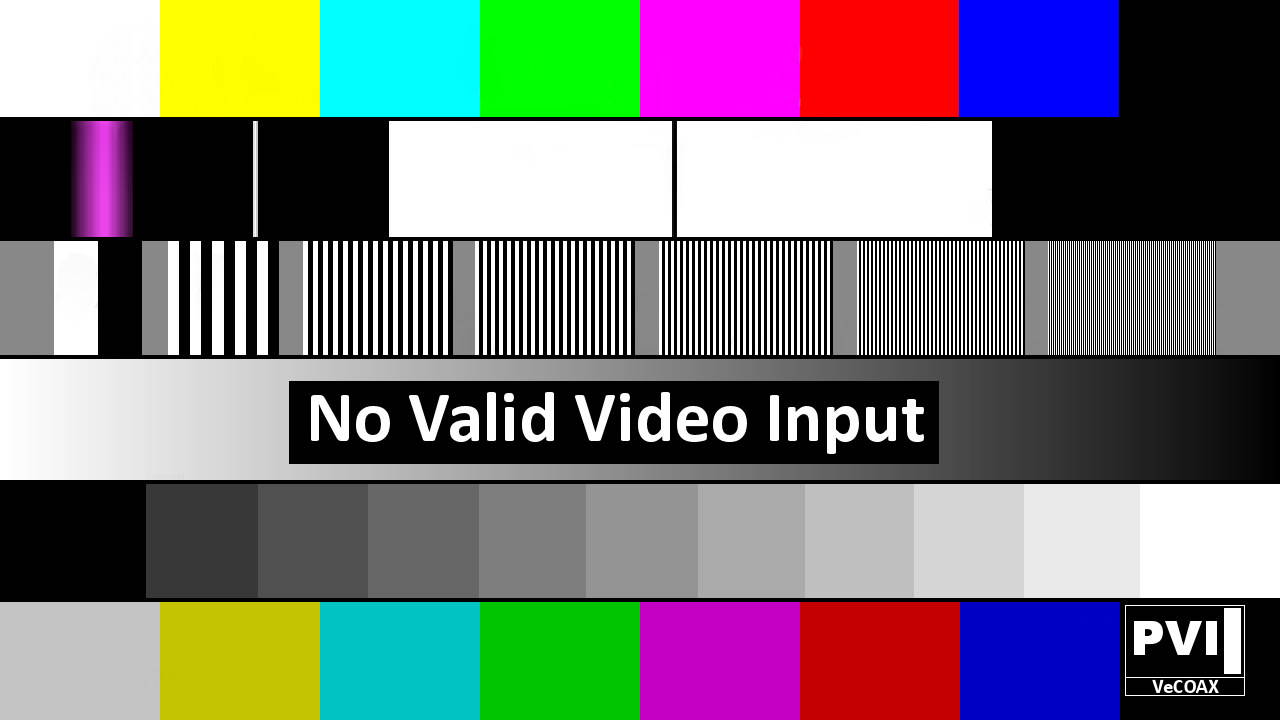
5) If you see the Color Bars Test pattern on your TV means the Minimod 2+ channel has been found and works correctly.
Click here to troubleshoot if the channel is not found
6) Disconnect the Minimod 2+ from the TV
7) Connect the TV back to the regular coaxial cable
8) Move the Minimod 2+ to the first Coaxial junction box splitter near the TV
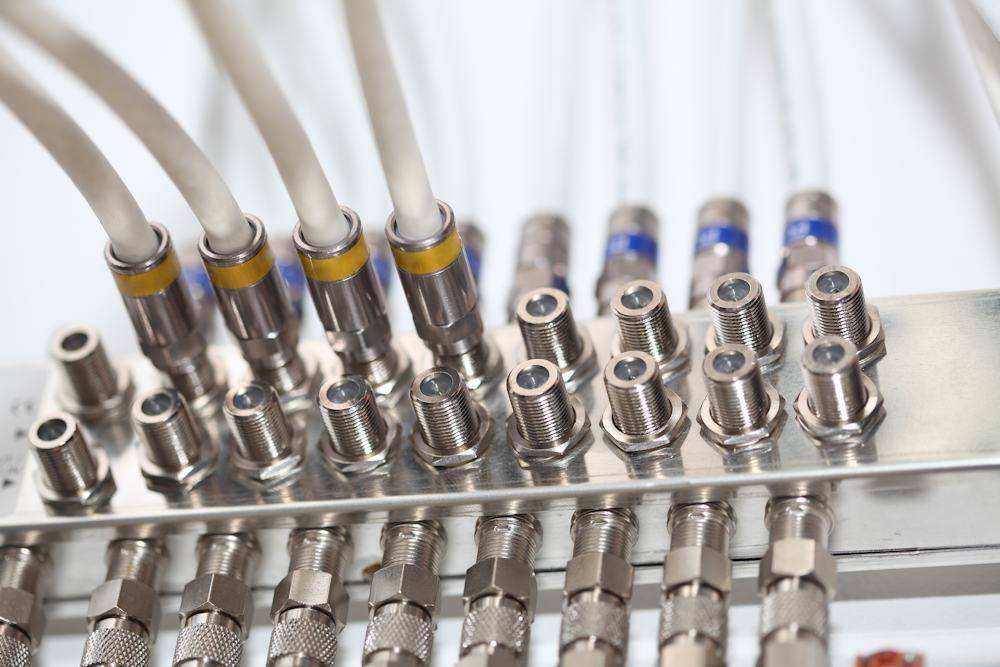
Connect the Minimod 2+ to the splitter so the Minimod 2+ channel signal will go to all your TVs via the splitter
Something like this picture...
9) Turn On the Minimod 2+ connected to the coaxial splitter
10) Check on the same TV if you can still see the Minimod 2+ color bars signal.
- IF YES, then Re-Scan all your other TVs to find the Minimod 2+ channel, same as on the first TV
- IF NO, click here to troubleshoot the coaxial splitter
11) Disconnect the Minimod 2+ from this splitter and connect to the next ones, one by one, repeating the same test from STEP #8
12) Connect The Minimod 2+ to the Main TV Coaxial Splitter, from where you serve all TVs and check again STEP #10
14) Connect your HDMI source to the Minimod 2+ HDMI input and watch your HDMI source as channel on all your TVs
Click here to troubleshoot HDMI video sources
15) Leave this Minimod 2+ connected to your coaxial cables and proceed to the next Minimod 2+
Repeat from step 1 for each Minimod 2+, one by one, so if there is an issue you'll be able to troubleshoot that easily
16) When all the Minimod 2+ are connected, all your TVs will be able to select and display any of the Minimod 2+ HDMI channels
Additional Documentation
No additional documentation is available at this time.
Contact us for any additional information
We respond within 24Hrs on regular business working days